

The new Common Language Runtime in .NET 4 allows you to save the state of an application in a special file called a dump in the event of an application crash. This can be used by the developer to accurately analyze the cause of the application crash. They can see the contents of variables and data structures in the same way as when they debug the application. The article describes how to configure the environment so that application crashes generate a dump file, which is then sent to the corporate server.
If the application is debugged by the developer, it runs under Visual Studio, so he has a very good overview of what is happening. If the application is tested by a tester, it is a bit worse. He describes the procedure for how the error occurred and, in the best case, even points out a possible cause that later does not turn out to be completely misguided. If the customer uses the application to a wilder extent than the developer expected, the developer will at best get a screenshot back. This rarely has a telling value. A log excerpt is usually useful, but it is again just a guide to reconstructing the error. Visual Studio 2010 and .NET 4 give us a very elegant solution that will bring so much information to the developer that the only difference between debugging in the development and production environment is that we cannot continue running the program.
JIT, which is a compiler from MSIL to machine code, and Windows can be set up to guard a certain application, and if there is an unhandled exception in it, a debugger attaches a dump to it, which writes a dump of its memory to disk. This is called a minidump. It does not contain a dump of the entire memory of the process, but only those parts that are expected to be of interest. To set up automatic generation of a minidump file, it is enough to write a few keys to the Windows registry and install the debugger that is part of Debugging Tools for Windows. Memory dumps are stored only in a folder that we specify. This folder can be monitored by some other program that sends the file to the corporate server. The developer just opens it in Visual Studio 2010 and sees the state of the program as well as if the error occurred with him. However, the application must be in .NET 4 and compiled in Debug mode. A pdb (program debug database) file is not needed to generate a minidump file.
The following contents of the reg file set up debugging and generate a minidump file for an application named HelloWorld.exe:
Windows Registry Editor Version 5.00

[HKEY_LOCAL_MACHINE\SOFTWARE\Microsoft\.NETFramework]
"DbgManagedDebugger"="\"C:\\Program Files\\Debugging Tools for Windows (x64)\\cdb.exe\" -pv -p %ld -c \".dump /u /ma c:\\crash_dumps\\crash.dmp;.kill;qd\""
"DbgJITDebugLaunchSetting"=dword:00000000

[HKEY_LOCAL_MACHINE\SOFTWARE\Microsoft\Windows NT\CurrentVersion\AeDebug]
"Debugger"="\"C:\\Program Files\\Debugging Tools for Windows (x64)\\cdb.exe\" -pv -p %ld -c \".dump /u /ma c:\\crash_dumps\\crash.dmp;.kill;qd\""
"Auto"="0"

[HKEY_LOCAL_MACHINE\SOFTWARE\Wow6432Node\Microsoft\Windows NT\CurrentVersion\AeDebug]
"Debugger"="\"C:\\Program Files (x86)\\Debugging Tools for Windows (x86)\\cdb.exe\" -pv -p %ld -c \".dump /u /ma c:\\crash_dumps\\crash.dmp;.kill;qd\""
"Auto"="0"

[HKEY_LOCAL_MACHINE\SOFTWARE\Wow6432Node\Microsoft\.NETFramework]
"DbgManagedDebugger"="\" C:\\Program Files (x86)\\Debugging Tools for Windows (x86)\\cdb.exe\" -pv -p %ld -c \".dump /u /ma c:\\crash_dumps\\crash.dmp;.kill;qd\""
"DbgJITDebugLaunchSetting"=dword:00000000

[HKEY_LOCAL_MACHINE\SOFTWARE\Microsoft\Windows\Windows Error Reporting\DebugApplications]
"HelloWorld.exe"=dword:00000001
This is the most complex example that works on x64 for both x64 and x86 applications. It is necessary to connect the corresponding debugger to the corresponding application type. In the Wow6432Node node, there is a setting for x86 applications on an x64 machine. The other settings are for x64. On an x86 machine, the Wow6432Node records are not valid and for the others, only the paths on the x86 debugger are modified. On the other hand, if all applications on x64 are purely x64, the records in the Wow6432Node node are not needed. We will also install Debugging Toos for Windows in the necessary bit version. To generate the minidump itself, you do not need the entire content of the installer, only the cdb.exe application is enough. In the last branch, the applications that should be debugged after the crash are set. Several applications can also be set up in this way.
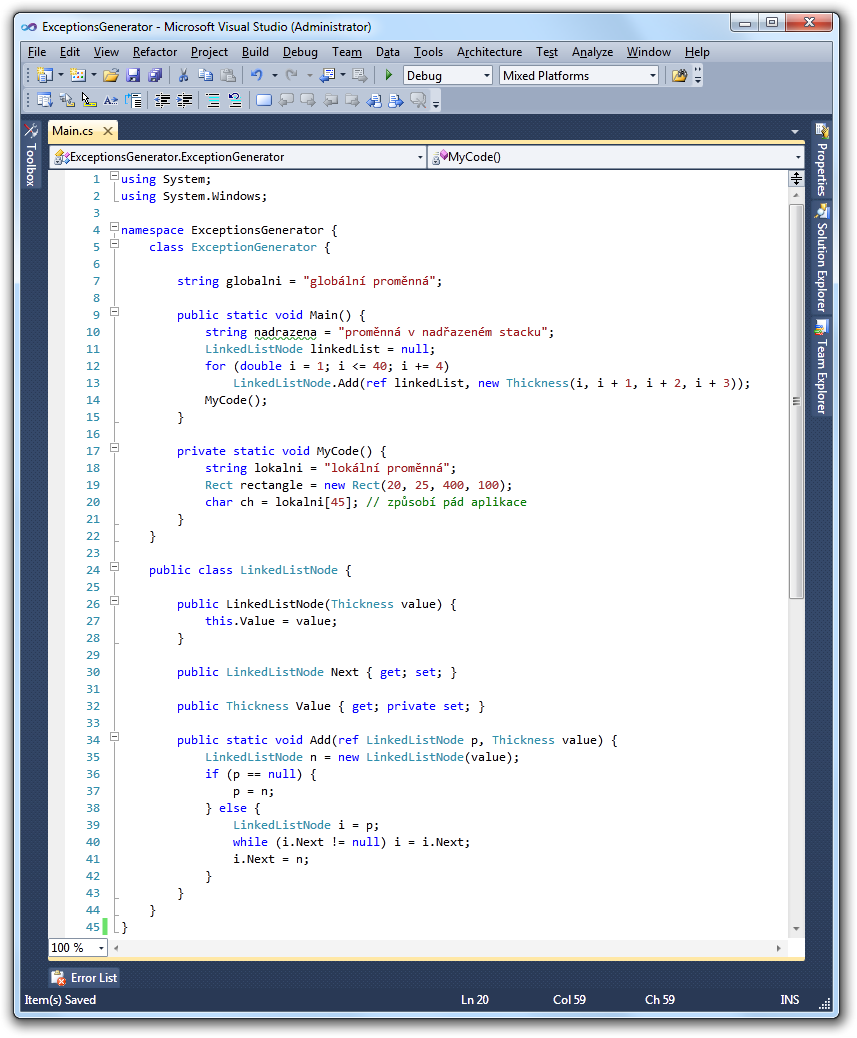
Let’s show what it looks like in practice. Let’s use a simple console application as an example. The Main method contains a string and a concatenated list that shows some deeper structure. First, we initialize the variables and then call the MyCode method, which causes the application to crash.
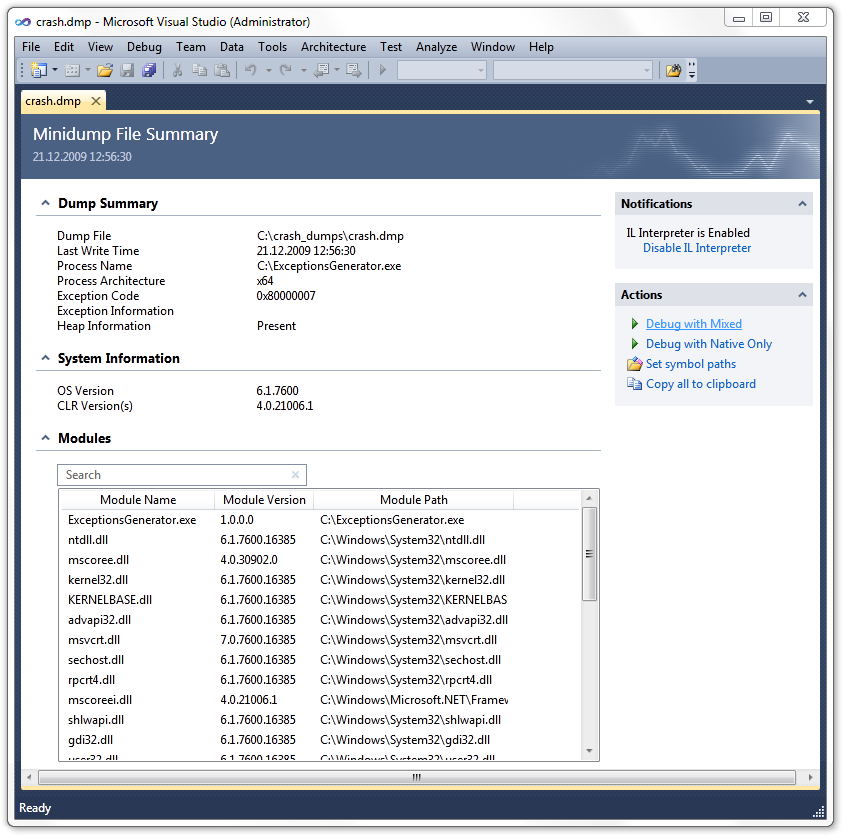
After starting the application, a minidump file is generated. The following image shows Visual Studio 2010 after opening it. In addition to the basic information, we have a list of loaded dynamic libraries. To debug in managed mode, click on Debug with Mixed.
If we have a project from which the original application was compiled, its source code is displayed and the line on which the exception occurred is highlighted. We can see a list of variables and their contents in the current stack. We can freely switch to the parent stack, where we have access to all variables again.
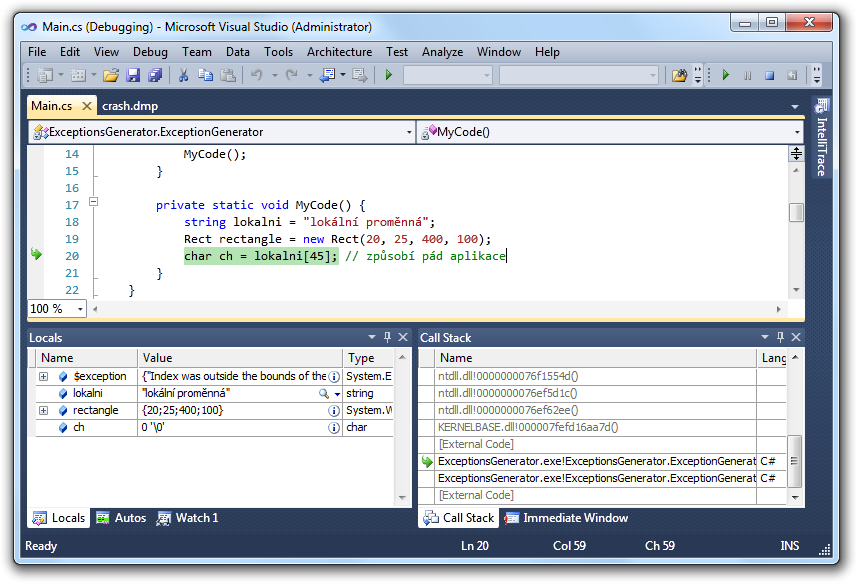
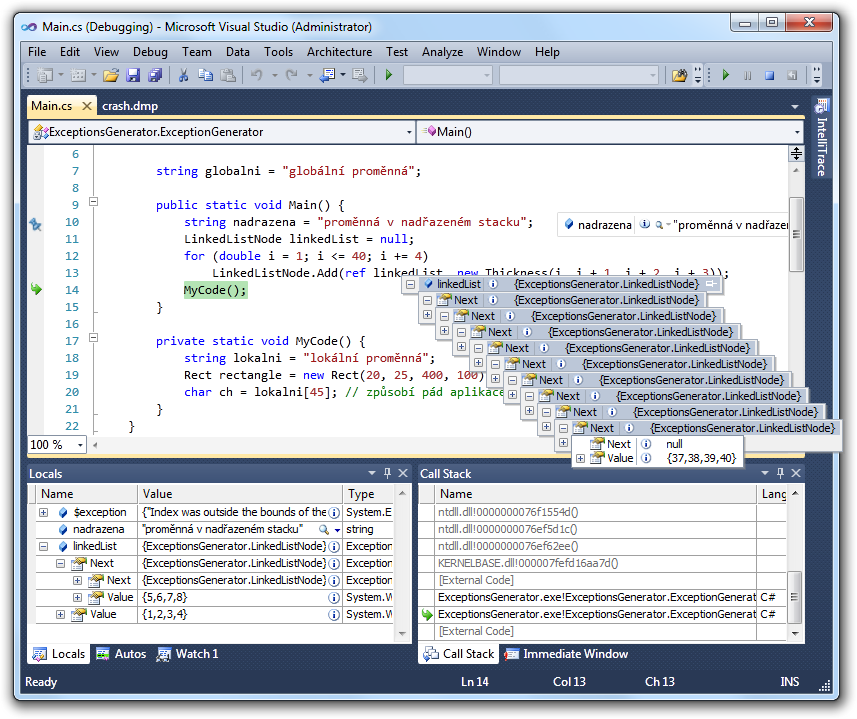
The only problems I encountered that prevented this convenient debugging was that Visual Studio cannot handle a minidump that catches an exception that occurred in the constructor of the WPF window. A slow customer line can also cause problems, because the minidump files are in the order of tens of megabytes.
The rest of the article shows uploading a minidump file to the server. The following code monitors the C:\crash_dumps directory and if it detects a new dmp file, it sends it to the server:
FileSystemWatcher fsw = new FileSystemWatcher(@"C:\crash_dumps", "*.dmp");
fsw.Created += new FileSystemEventHandler(fsw_Created);

void fsw_Created(object sender, FileSystemEventArgs e) {
    string filename = e.FullPath;

    ServiceClient client = new ServiceClient();
    FileStream fs = File.Open(filename, FileMode.Open);
    string serverHash = client.UploadDump(fs);

    fs.Seek(0, SeekOrigin.Begin);


    MD5CryptoServiceProvider md5 = new MD5CryptoServiceProvider();
    byte[] hash = md5.ComputeHash(fs);
    string localHash = BitConverter.ToString(hash);

    fs.Close();

    if (localHash == serverHash) File.Delete(filename);

}
The service receives the stream and stores it in a file in 4KB blocks. At the end, it calculates the MD5 hash and returns it to the client:
[ServiceContract]
public interface IService {

    [OperationContract]
    string UploadDump(Stream content);

}

public class Service : IService {

    string IService.UploadDump(Stream content) {

        string file = null;

        try {

            file = Path.GetTempFileName();

            FileStream fs = File.Open(file, FileMode.Create, FileAccess.Write);

            const int bufferLen = 4096;
            byte[] buffer = new byte[bufferLen];
            int count = 0;
            while ((count = content.Read(buffer, 0, bufferLen)) > 0) fs.Write(buffer, 0, count);
            fs.Close();
            content.Close();

            fs = File.Open(file, FileMode.Open, FileAccess.Read);
            MD5CryptoServiceProvider md5 = new MD5CryptoServiceProvider();
            byte[] hash = md5.ComputeHash(fs);
            fs.Close();

            File.Move(file, Path.Combine(@"C:\Client Crash Dumps\HelloWorld", Path.GetFileNameWithoutExtension(file) + ".dmp"));

            return BitConverter.ToString(hash);

        } catch {
            if (file != null && File.Exists(file)) File.Delete(file);
            return null;
        }
    }

}
The corresponding web.config should be applied only to this service. We will not publish its endpoint anywhere, because it opens the door to possible DoS attacks.
<configuration>
  <system.web>
    <httpRuntime maxRequestLength="1048576" executionTimeout="3600"/><!-- 1 GB   1 hod -->
  </system.web>
  <system.serviceModel>
    <behaviors>
      <serviceBehaviors>
        <behavior name="ServiceUpload.ServiceBehavior">
          <serviceMetadata httpGetEnabled="true"/>
          <serviceDebug includeExceptionDetailInFaults="false"/>
        </behavior>
      </serviceBehaviors>
    </behaviors>
    <services>
      <service behaviorConfiguration="ServiceUpload.ServiceBehavior" name="ServiceUpload.Service">
        <endpoint address="" binding="basicHttpBinding" bindingConfiguration="HttpStreaming" contract="ServiceUpload.IService"/>
        <endpoint address="mex" binding="mexHttpBinding" contract="IMetadataExchange"/>
      </service>
    </services>
    <bindings>
      <basicHttpBinding>
        <binding name="HttpStreaming" maxReceivedMessageSize="1073741824" transferMode="Streamed"/><!-- 1 GB -->
      </basicHttpBinding>
    </bindings>
  </system.serviceModel>
</configuration>
The service is of the basic http binding type, so communication does not take place over a secure channel unless we encrypt the stream ourselves. The advantage is that the file is sent as a stream and the http binding does not stand in the way of firewalls. The method implementing stream processing cannot have any other parameter, which should not matter in this case.